Non-destructive shapes
All vectors are preserved in boolean groups, making all icons fully editable, though they appear as outlined shapes.


Line
Features
Every single icon has been hand-drawn from the ground up, directly in Figma, using its built-in technologies like vector networks and boolean groups.
All vectors are preserved in boolean groups, making all icons fully editable, though they appear as outlined shapes.
A consistent 1.5px stroke width across all icons ensures a uniform and elegant look throughout the entire set.

Corner smoothing is applied to every single radius, giving the icons their distinctive and modern appearance.
Effortlessly switch the entire set's colors or seamlessly toggle between light and dark mode with a single click using variables.

Each icon is a single component with five variants (styles): Line, Fill, Duo Line, Duo Fill, and Contrast.

All icons are built on the same icon grid and placed within a 24x24px container for maximum consistency.
Want icons that match your brand? Tweak everything from stroke width and corner radius to vector points.
Utilizing Figma’s vector networks along with boolean groups simplifies every icon's structure, ensuring lightweight SVGs.
How to use
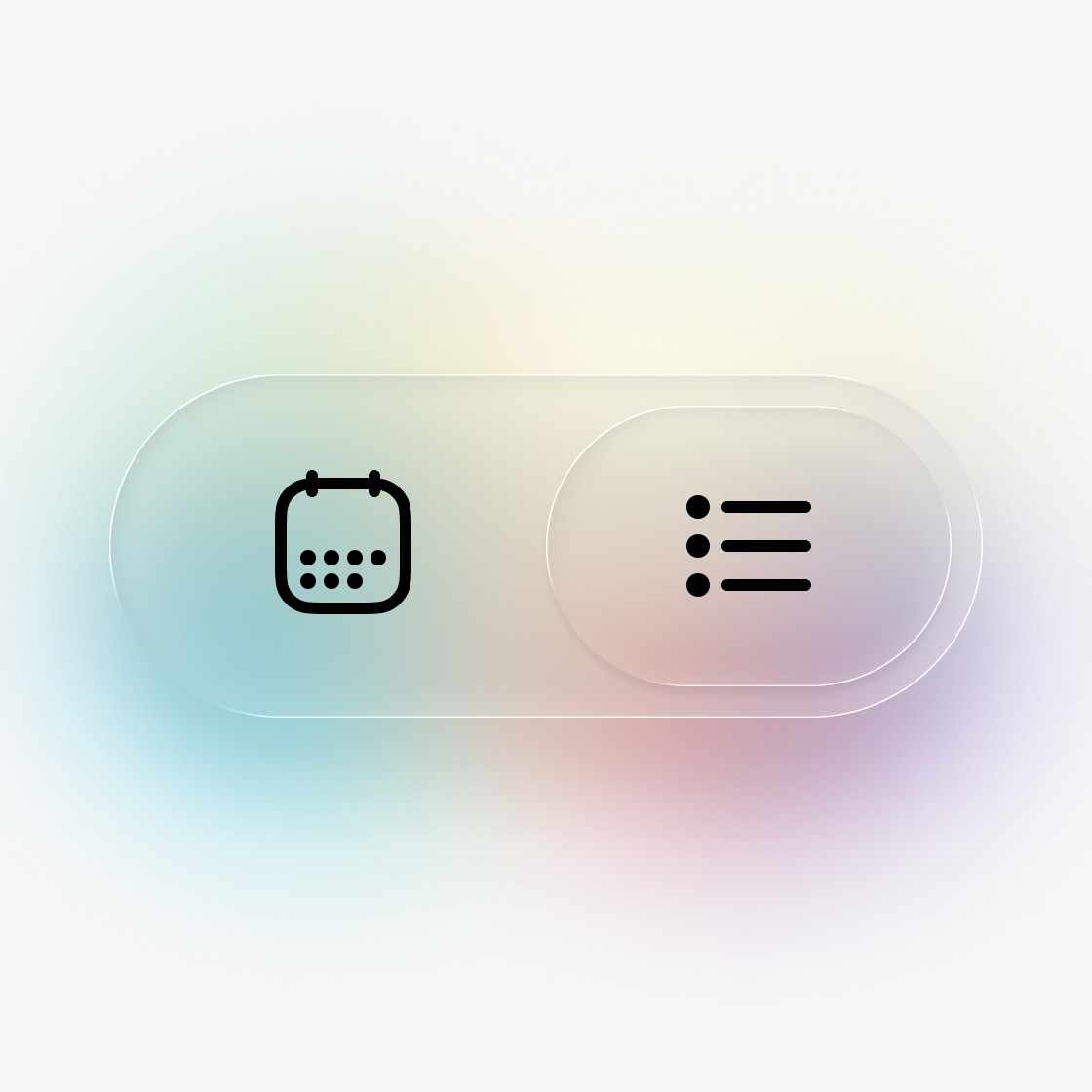
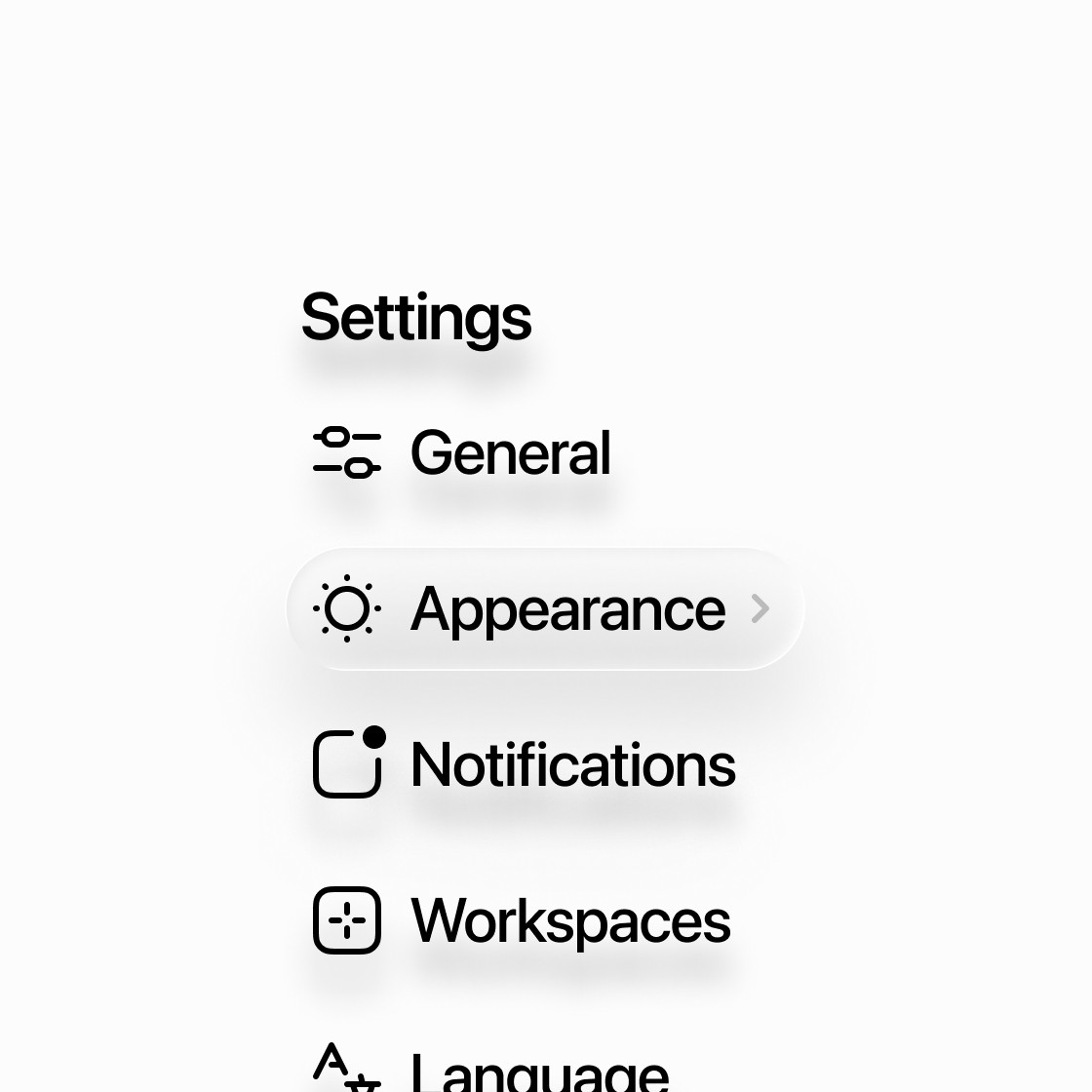
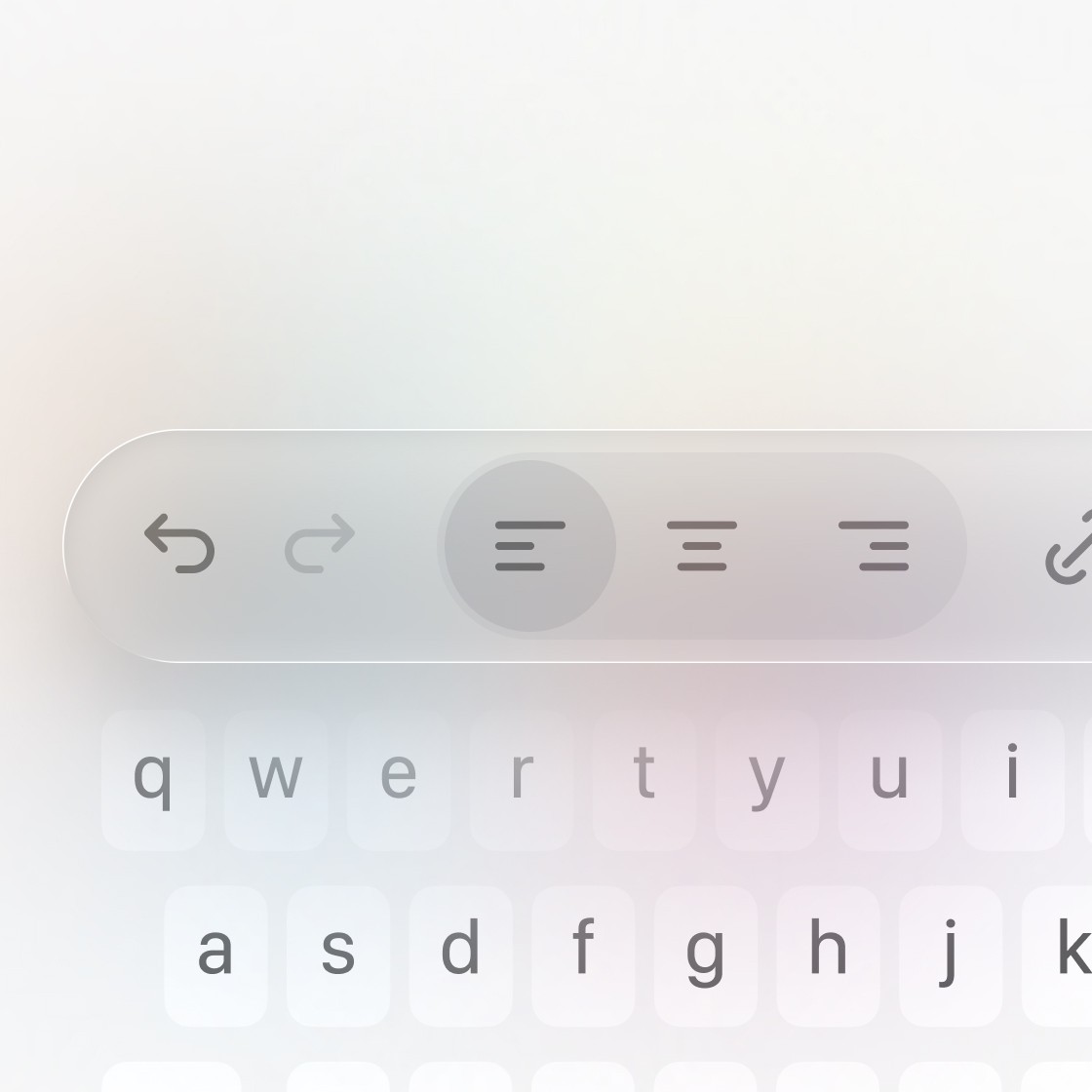
Switch every icon manually, or assign variables to switch them all in an instant. Component variants make it possible.

Pricing
Infinicons will grow over time. Buy them today and receive all upcoming updates free of charge.
The best way to give Infinicons a try before buying.
 300 icons included5 icon stylesLine, Fill, Duo Line, Duo Fill, ContrastUse for free, foreverFree for personal useUnlimited projects
Ideal for solopreneurs, designers, developers or just anyone really.
1,600 icons included…with more to come!5 icon stylesLine, Fill, Duo Line, Duo Fill, ContrastBuy once, use foreverPersonal and commercial useUnlimited projectsEver-growing icon libraryRegular icon releasesFree lifetime updatesExported SVG libraryIcon RequestsRequest new icons to be added in an upcoming releaseEmail SupportPerfect for smaller teams, and startups that require more licenses.
1,600 icons included…with more to come!5 icon stylesLine, Fill, Duo Line, Duo Fill, ContrastBuy once, use foreverPersonal and commercial useUnlimited projectsEver-growing icon libraryRegular icon releasesFree lifetime updatesExported SVG libraryIcon RequestsRequest new icons to be added in an upcoming releaseEmail SupportThe ultimate package for growing agencies and mid-sized companies.
1,600 icons included…with more to come!5 icon stylesLine, Fill, Duo Line, Duo Fill, ContrastBuy once, use foreverPersonal and commercial useUnlimited projectsEver-growing icon libraryRegular icon releasesFree lifetime updatesExported SVG libraryIcon RequestsRequest new icons to be added in an upcoming releaseEmail SupportGood to know
Not sure how to use Infinicons, or how using and updating the library works? Not to worry – this FAQ section has got you covered!
 What are Infinicons?
Infinicons is an ever-growing icon library for Figma. All icons come in 5 styles to choose from: Line, Fill, Duo Line, Duo Fill and Contrast.
What sets Infinicons apart from other icon sets?There are many great icon sets out there, each with its own style and use cases. Infinicons aims to join the ranks of these sets, bringing its unique take on style and versatility.
Aside from that, Infinicons has been built using state-of-the-art techniques, leveraging Figma’s built-in technologies like vector networks, boolean groups, and variables. This results in non-destructive shapes with smooth corners that are even rendered as such in exported SVGs. Every single icon is assigned multiple keywords, making it easy to find in Figma. Additionally, utilizing component variants reduces the number of components, resulting in a faster and more efficient icon search.
All of this makes the icons fully editable, lightweight, and consistent in style.
Who made this icon set, and why?Infinicons were entirely made by me, Thomas. I am a Product Designer with over 15 years of experience. I have always loved designing icons, and out of my own necessity, I started creating an icon set for use in my own projects as well as my clients’ projects. While designing them, I quickly realized that others might also be interested in using them, so I turned them into a real product.
Who are these icons for?Infinicons are made for anyone who cares about the details – designers, developers, solopreneurs, and makers who want icons that feel considered and consistent, not just functional.
Whether you're building an app, shipping a website, crafting a pitch deck, or putting together marketing assets, Infinicons fits right in. The set is versatile enough to work across product design, web, branding, and print – and easy enough to use that you don't need to be a Figma expert to get started.
How many icons are there?Right now, Infinicons consists of 1,600 icons, comprising 320 unique icons, each available in 5 different styles. More icons are already in the works and are added to the library as free updates.
Will there be more icons?YES! I love designing them and I have no intention to stop.
What do I need to use the icons?Infinicons are designed for and built in Figma. To get the most out of them, I recommend using Figma to take full advantage of their features and flexibility. Figma also has a free tier, so you can definitely use the icon set without having a paid Figma license.
However, if you’re unfamiliar with Figma, each icon also comes as an exported SVG, which you can use in your projects without needing Figma.
Can I try Infinicons before buying?Absolutely! There is a free demo version of the icon set that you can download completely free of charge. It includes 300 icons (60 unique icons in 5 styles each) for you to try before purchasing.
The free icons can be used in personal projects only. For more information, please refer to the license agreement.
Can I request icons?Yes! By purchasing Infinicons, you’re eligible to request new icons. I review all requests, and if they align well with the library, they will be added to my list of planned icons.
However, I cannot guarantee when or if a requested icon will be included in the set at all. If a requested icon is created, it will be made available to all customers as part of a free update.
Please use this form to submit your icon requests.
How do licenses work?Licenses are based on a per-seat usage model:
Solo License: Restricted to a single individual. The icons may be published as a Figma library, but only the licensed individual is permitted to use and/or edit them.
Team License: Allows up to five (5) individuals within the same organization or team. Each individual under the Team License must adhere to these terms.
Studio License: Permits up to twenty (20) individuals within the same organization or studio. Each individual under the Studio License must adhere to these same terms.
Additional users require additional seat licenses. Sharing a single-seat license (Solo License) among multiple individuals is not permitted.
The use of icons in an end product (e.g., personal or commercial projects, or resellable digital products) is only subject to a usage limit.
For more details, please refer to the license agreement.
Where can I use Infinicons?Once purchased, you can use Infinicons virtually anywhere: Apps, websites, social media, marketing assets, print materials, eBooks, and more.
The only limitation is the maximum number of icons per unique end product:
For personal and commercial projects: Up to 100 unique icons (500 including all five styles).
For resellable digital products (e.g., website templates, eBooks, etc.): Up to 30 unique icons (150 including all five styles).
If you need more than that, feel free to reach out, and we can find a suitable agreement. For full details on usage limits, please refer to the license agreement.
Can I use the icons in other digital products?Yes! In addition to personal and commercial (client) projects, you can use up to 30 unique icons (150 in 5 styles) in other digital products, such as website templates, eBooks, and the like.
For a detailed breakdown of how many icons can be embedded depending on the end product, please refer to the license agreement.
Why should I pay for icons?A well-made icon set like Infinicons can save you hundreds of hours of work, which directly translates to time and money saved for you and your business.
If you want to give your projects a unique and professional touch, Infinicons could be the perfect fit. And if you’re unsure, you can always try the free demo version before making a decision!
Is this a one-time payment?Yes, absolutely! No surprises. Every paid license includes free updates whenever I add and publish new icons.
However, if you really love Infinicons and want to support their continued development, you can donate any amount by purchasing the free demo version of the icon set.
Are there discounts?Using a high-quality icon set like Infinicons can save you dozens – if not hundreds – of hours of work, ultimately saving you and your business real money. Given the value it provides, the current price is already more than fair.
However, there may be special offers throughout the year, so be sure to keep an eye out and consider subscribing to the newsletter! 😊
Do you offer refunds?Infinicons is a one-man endeavor that has already taken hundreds of hours to create. Purchasing the icon set supports an independent designer and grants you lifetime access to an ever-growing library of high-quality icons.
If you’re unsure about buying, there’s a free version of the icon set for you to try, which also includes a full preview of the complete set.
Due to the nature of this digital product, ownership is immediate upon purchase, and I am unable to offer refunds. However, if you encounter any technical issues or have any questions, please feel free to reach out – I’m happy to help!
What if I need more licenses?If you need more licenses, please consider purchasing additional Team or Studio licenses. However, if you require a significantly larger number, please reach out to me so we can discuss a suitable agreement.
Why is there a license key in my email?Good catch! For now, you can ignore it – the Figma file you purchased is what you actually need. However, the generated license key might come in handy if I ever decide to release an Infinicons Figma plugin. Who knows… 😊
Do you plan on releasing a Figma plugin?Not for now, but never say never! Noticed the license key in your purchase confirmation email? It’s obsolete for now, but if I ever decide to release an infinicons Figma plugin, it might come in handy.
How do I import and use Infinicons in Figma?After purchasing a license, you’ll receive an email with the latest version of the icon set.
Once downloaded, follow these steps to import it into Figma:
Open Figma and go to the Home Screen.
Select “Create New/Import” and choose the downloaded file to import it.
Done
How do I use icons from the file directly?After importing the file into Figma, simply open it, search for the desired icons, and copy-paste them from the master file into your design file.
However, for a more accessible and efficient workflow, it’s recommended to publish the file as a library, allowing you to easily access and insert icons across multiple design files. Please note, that publishing libraries might not be available on all Figma plans.
Can I use and publish Infinicons as a library?Absolutely! In fact, this is the recommended approach for easier access and better workflow efficiency. For detailed guidance, please refer to Figma's help articles on how to Publish a Library and how to Add a library to a design file.
Please note, that publishing libraries might not be available on all Figma plans.
How do I receive new releases (icon drops) of the icon set?Whenever a new version of the icon set is released, you can download it using the download link provided in your initial purchase confirmation email. Simply click the “View Order” button in that email to access your Lemon Squeezy customer portal, where you’ll always find the most up-to-date version of the icon set.
If you don’t want to miss any updates or new icon drops, consider signing up for my newsletter. Also, keep an eye out on my socials to never miss an update: @ThomasMirnig / @getInfinicons.
How do I update the icon set in Figma?Unfortunately, Figma doesn’t support automatic updates for third-party libraries, so updates must be performed manually. You have two options:
Update your existing library manually (recommended)
With each update, new icons will be added under a version section heading within their respective categories. Simply copy these new sections and paste them into the corresponding categories in your existing library. Once you’ve completed this step for all categories, publish your updated library. This ensures all existing instances in your files remain linked and provides immediate access to the new icons.
Import the new file and publish it as a new library
If you choose this method, you’ll need to remove the previous version of the library, publish the new version, and manually relink all component instances to the new library components. This process is time-consuming, as it must be repeated in every file that uses the library, making this option less ideal.
What are boolean groups?Boolean groups allow vectors to be fully preserved, making them completely editable.
This is particularly useful for scaling icons and exporting them as SVGs, as it ensures they appear as outlined shapes. Additionally, boolean groups help maintain smooth corners, meaning that corner smoothing is preserved in SVG exports as well.
As a result, Infinicons retain all their characteristics when exported, ensuring a high-quality and consistent appearance across different uses.
How do I to scale an icon in Figma properly?There are two ways to scale an icon:
Changing Width and Height
By doing so, the icon will maintain all its original parameters, such as stroke width and corner radius. Scaling an icon this way can significantly alter its appearance, which is why it is not the recommended approach.
Scale Tool (K)
Using the Scale Tool lets you scale an icon proportionally, meaning that all its parameters, such as stroke width and corner radius, will also scale proportionally, maintaining the icon’s appearance. Scaling with the Scale Tool is the recommended approach.
Caveats:
It is known that Figma has an issue with overrides of scaled nested component instances. This means that if you place a scaled version of a component (in this case, a scaled icon) into another component (e.g., a button), create an instance of that button, and then swap the icon (change the override), the appearance of the icon may break.
This is not an issue with the icon set but rather a bug in Figma. Unfortunately, to work around this, it is recommended to create different sizes of the icons first and nest those into your component.
Let’s hope Figma fixes this sooner rather than later!
Is there an affiliate program?Yes! If you’d like to help promote Infinicons and earn a commission, you can apply to become an affiliate on Lemon Squeezy. Once your application is reviewed and accepted, you can earn up to 15% per purchase made through your affiliate link.
Please not that the affiliate program is handled entirely via Lemon Squeezy.
